Which browsers are supported
The extension is available for Chrome, Firefox, Edge, Safari, Brave, Opera, Vivaldi, DuckDuckGo and Tor Browser. Chromium-based browsers install it from the Chrome Web Store, Tor Browser uses the Firefox add-on, and Safari gets it bundled with the Mac desktop app.
| Browser | Where to install | Notes |
|---|---|---|
| Chrome, Brave, Vivaldi, Opera | Chrome Web Store | Opera may first ask you to allow Chrome Web Store installs |
| Edge | Edge Add-ons | The Chrome Web Store version also works |
| Firefox, Tor Browser | Firefox Add-ons | Any added extension makes Tor Browser more identifiable |
| Safari | bitwarden.com/download | Bundled with the Mac App Store desktop app; enable in Safari, Settings, Extensions |
| DuckDuckGo (Mac) | bitwarden.com/download | Enable under the browser’s password settings |
Install only from these listings or from links on bitwarden.com; fake extensions with similar names have appeared in stores before. See how to download safely.
Install and pin the extension
- Open the official store link for your browser from the table above.
- Click Add to Chrome, Add to Firefox or Get and confirm the permissions. Reading and changing data on websites is what autofill requires.
- Pin the Bitwarden icon: click the puzzle-piece button (Chrome, Edge, Brave) or the extensions button (Firefox) and choose the pin next to Bitwarden.
- Click the shield icon, choose Log in and enter your email address and master password. EU accounts first set Logging in on to
bitwarden.eu; self-hosted users choose Self-hosted and enter their URL, see self-hosting Bitwarden. - Open Settings, Account security and turn on Unlock with PIN or Unlock with biometrics, covered next.
Safari is different. Install the desktop app from the Mac App Store, or with brew install --cask bitwarden as described in installing on macOS, open it once, then in Safari choose Settings, Extensions, tick Bitwarden and allow it on all websites.
Unlock options: PIN or biometrics
Typing the master password on every browser start is the main reason people abandon an extension, so set one of these in Settings, Account security:
- Unlock with PIN. Choose a short PIN and leave Lock with master password on browser restart ticked, so the PIN only works within a session and a restart needs the full password. The PIN never replaces the master password for logging in on a new device.
- Unlock with biometrics. Uses Windows Hello, Touch ID or Linux Polkit through the desktop app, which must be installed, running, logged in to the same account, and have Allow browser integration switched on in its settings. Turn on the option in the extension and confirm that the fingerprint shown in the browser matches the one in the desktop app.
Autofill settings that matter
Everything here is under Settings, Autofill.
- Autofill on page load is off by default and should stay off for most people. When on, the extension fills credentials as soon as a matching page loads, with no click. A compromised page could hide a login form and collect the fill, so Bitwarden makes you opt in.
- Keyboard shortcut:
Ctrl+Shift+Lon Windows and Linux,Cmd+Shift+Lon macOS, fills the first matching login; press again to cycle through other matches. Change it atchrome://extensions/shortcutsor in Firefox under Manage Extension Shortcuts. - Inline autofill menu shows a small Bitwarden dropdown inside username and password fields. Turn it off if it collides with a site’s own suggestions.
- Popup: the toolbar icon opens the Tab view listing logins that match the current page, each with a fill button. Right-clicking a field offers the same through the context menu.
URI match detection
Autofill decides what matches by comparing each login’s saved URI with the current page. The default is Base domain: a login saved for google.com matches accounts.google.com and mail.google.com. Change the default under Settings, Autofill, Default URI match detection, or per URI by editing an item and clicking the settings icon next to the URI.
| Option | Matches when | Use it for |
|---|---|---|
| Base domain | The registered domain matches, any subdomain | Almost every site; the default |
| Host | Hostname and port match exactly | Separate accounts on app1.example.com and app2.example.com |
| Starts with | The page URL begins with the saved URI | Path-based separation on one host |
| Exact | The full URL is identical | Rare; breaks when a query string changes |
| Regular expression | The URL matches a pattern | Advanced cases only |
| Never | Nothing | Logins you keep but never want offered |
Base domain is the default because it survives redirects between login., www. and accounts. subdomains, which is how most sign-in flows work. Switch to Host only when subdomains are genuinely different services, such as several self-hosted apps on one domain. The most common cause of a missing autofill is an item saved with a specific host while the site now signs in elsewhere; Base domain fixes it.
Saving new logins and the generator
When you submit a login form with credentials not in your vault, a banner at the top of the page offers Save as new login, or Update existing when the username is known and the password changed. The current URL is attached automatically. If no banner appears, open the popup, go to Tab and press +; the URI is prefilled. The banner is controlled by Settings, Notifications, Ask to add login.
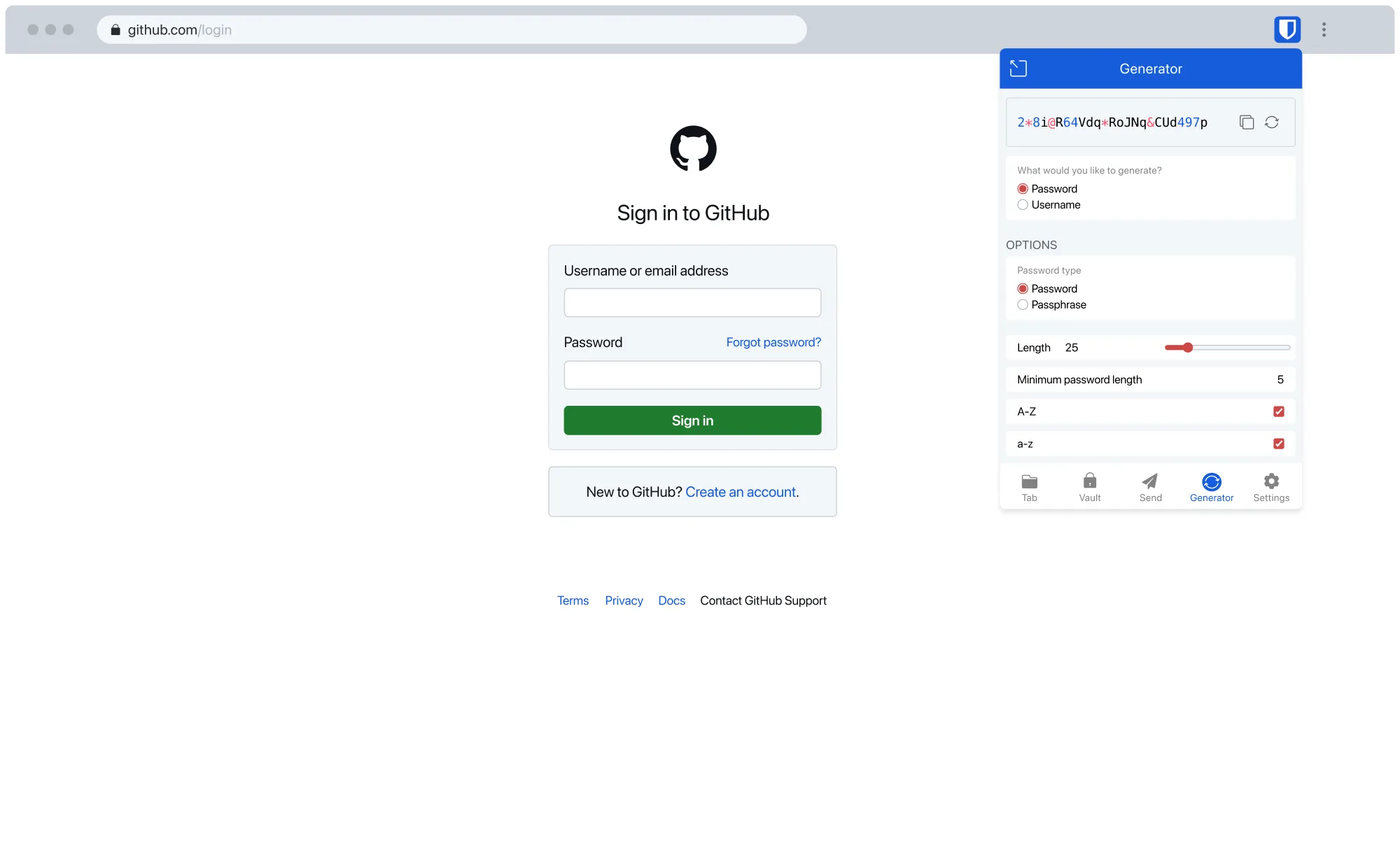
The Generator tab produces two kinds of secret. Password is for sites: 16 to 20 characters with all four character classes, or 32 and more where you never type it. Passphrase is for values you type by hand, such as Wi-Fi or your master password: four or more words with - as the separator. Recent values stay in Generator history, so a password lost to a failed sign-up can be recovered.
Turn off the browser’s built-in password manager
Two managers offering to save the same password is the most common source of confusion, so disable the browser’s:
- Chrome:
chrome://password-manager/settings, turn off Offer to save passwords and passkeys and Sign in automatically. - Edge:
edge://wallet/settings, turn off Offer to save passwords. - Firefox:
about:preferences#privacy, Logins and Passwords, untick Ask to save passwords. - Safari: Settings, AutoFill, untick User names and passwords.
Move what is already stored there first: import passwords from Chrome and Edge covers export and import. If you are still deciding, read Bitwarden vs Google Password Manager.
Vault timeout and running without the desktop app
Settings, Account security, Vault timeout sets how long the extension stays unlocked after you stop using it. Fifteen minutes or On browser restart with the action set to Lock is a sensible middle. Lock keeps PIN or biometric unlock available; Log out wipes the local copy and requires the master password and two-step login next time.
The extension does not need the desktop app. It talks to the server directly, stores its own encrypted vault, generates passwords, fills TOTP codes with Premium and stores passkeys. The desktop app adds biometric unlock for the extension, a larger editing window and the SSH agent. If you want it, the one-command install on the home page takes a minute.
Troubleshooting
- Autofill does not appear on a site. Compare the item’s URI with the address bar under the current match detection. If the login form is inside an iframe from another domain, Bitwarden will not fill it unless you allow that under Settings, Autofill. Refresh the page after installing or unlocking, because the extension’s scripts only attach on a fresh page load.
- Unlock with biometrics is greyed out. The desktop app must be installed, running, logged in to the same account, and have Allow browser integration enabled. Restart the browser after turning it on. On Windows, set up Windows Hello first.
- Firefox from Snap on Ubuntu cannot reach the desktop app. The Snap sandbox blocks the native messaging channel, so biometric pairing fails. Use PIN unlock, or install Firefox from Mozilla’s apt repository. Flatpak browsers have the same limitation. See installing on Ubuntu.
- The extension keeps logging you out. The vault timeout action is Log out, or a privacy tool clears extension storage. Set the action to Lock.
Frequently asked questions
Does the Bitwarden browser extension work without the desktop app?
Yes. The extension syncs directly with the Bitwarden server, keeps its own encrypted copy of the vault, fills logins, generates passwords and handles passkeys on its own. The desktop app is only required for biometric unlock of the extension and for the SSH agent.
Why is Bitwarden autofill not showing on a website?
Usually the saved URI does not match the page under the current match detection setting. Edit the item and compare its URI with the address bar, or set match detection to Base domain. Also refresh the page after unlocking, and check whether the login form sits inside an iframe.
What is the keyboard shortcut for Bitwarden autofill?
Ctrl+Shift+L on Windows and Linux, Cmd+Shift+L on macOS. It fills the first login that matches the current page; press it again to cycle through other matches. You can change the shortcut at chrome://extensions/shortcuts or in Firefox's Manage Extension Shortcuts.
Can I unlock the Bitwarden extension with a fingerprint or Face ID?
Yes, through the desktop app. Install and run the Bitwarden desktop app, turn on Allow browser integration in its settings, then enable Unlock with biometrics in the extension. Windows Hello, Touch ID and Linux Polkit are supported. Without the desktop app, use Unlock with PIN instead.
How do I stop Chrome asking to save passwords when I use Bitwarden?
Open chrome://password-manager/settings and turn off Offer to save passwords and passkeys, plus Sign in automatically. Edge uses edge://wallet/settings, Firefox about:preferences#privacy. Import anything already saved into Bitwarden first, then delete it from the browser.
Is the Bitwarden browser extension safe to install?
Yes, when installed from the official store listing or a link on bitwarden.com. The extension is open source under GPL-3.0, audited annually by third parties, and encrypts the vault locally with your master password. See is Bitwarden safe for the full assessment.