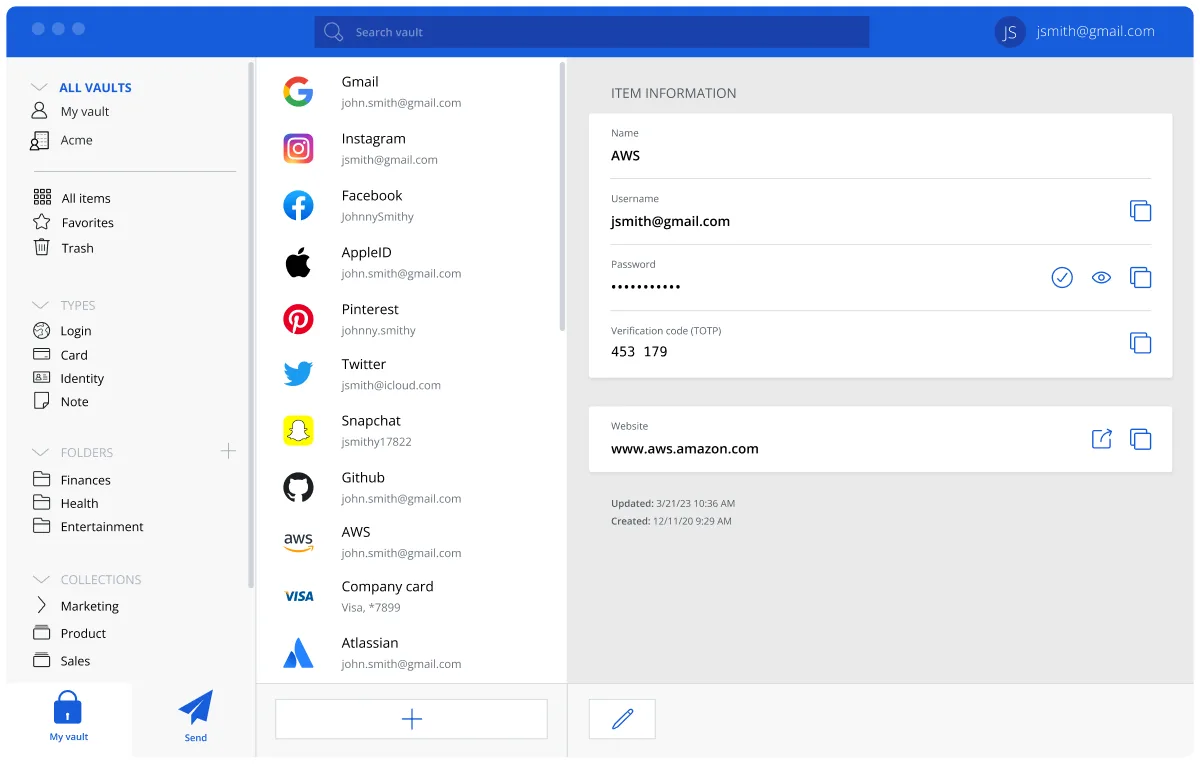
Which install method to use
| Method | Auto-updates | Sandboxed | Size on disk | Works on RHEL / Rocky / Alma |
|---|---|---|---|---|
Flatpak com.bitwarden.desktop | On flatpak update or via GNOME Software | Yes | About 300 MB plus shared runtime | Yes, after adding Flathub |
.rpm from GitHub | No, the app notifies you | No | About 300 MB | Usually, but may hit missing libraries |
Snap sudo snap install bitwarden | Yes, several times a day | Yes (strict) | About 300 MB with the shared core | Yes, snapd from EPEL |
| AppImage | Yes, built in | No | About 100 MB, one file | Yes |
All four are the same open-source desktop app, published from the bitwarden/clients repository. Fedora is a Flatpak-first distribution: Flatpak is preinstalled, GNOME Software shows Flathub results next to RPM results, and Fedora Workstation 38 and later ship the full Flathub remote enabled. That makes the Flatpak the default recommendation here. The .rpm is a normal native package but lives outside any repository, so dnf cannot update it. Snap works but is a second package system to maintain. The AppImage is one file, useful when you have no root access.
Everything below applies to Fedora Workstation, Fedora KDE and the Atomic desktops (Silverblue, Kinoite), which can only use Flatpak or AppImage anyway. RHEL, Rocky Linux and AlmaLinux notes are called out where they differ, and openSUSE users can substitute zypper for dnf.
Method 1: Flatpak from Flathub
- Open a terminal: press Super, type Terminal and press Enter.
- Check that the Flathub remote exists with
flatpak remotes. Fedora Workstation 38 and later already list it. On older Fedora, on RHEL-based systems (installflatpakfirst withsudo dnf install flatpak) and on openSUSE, add it:
flatpak remote-add --if-not-exists flathub https://flathub.org/repo/flathub.flatpakrepo- Install Bitwarden and confirm the runtime it pulls in with
y.
flatpak install flathub com.bitwarden.desktop- Press Super, type Bitwarden and open it. Log in or Create account; the free plan has no limit on passwords or devices.
If the app does not appear in Activities straight away, log out and back in so the session picks up the Flatpak export path.
Method 2: the .rpm from GitHub
- Open the current release on GitHub (the install panel on this page links to the exact file) and download
Bitwarden-<version>-x86_64.rpm, about 100 MB. If youwgetit from a terminal, use the link the panel gives you rather than typing a URL, since the version changes every release. - Install with dnf so dependencies are resolved from the Fedora repositories:
sudo dnf install ./Bitwarden-*-x86_64.rpm- dnf warns that the package is not signed by a repository key. That is expected for a local file; the download itself is served over HTTPS from GitHub, and the checks in how to download safely explain how to confirm you have the real release.
- Launch Bitwarden from Activities and delete the .rpm.
On openSUSE the equivalent is sudo zypper install ./Bitwarden-*-x86_64.rpm. On RHEL 9, Rocky 9 and AlmaLinux 9 the install can stop with a message about libXss.so.1, because that library is not in the base repositories; enable EPEL or, simpler, use the Flatpak.
Method 3: Snap
Snap is not part of Fedora, but Canonical packages snapd for it and Bitwarden is in the Snap Store as a strictly confined snap.
sudo dnf install snapd && sudo ln -s /var/lib/snapd/snap /snapLog out and back in, or reboot, so the snap paths are on your session’s PATH. The /snap symlink is only strictly needed for classic snaps, which Bitwarden is not, but it stops later errors. Then:
sudo snap install bitwardenOn RHEL, Rocky and AlmaLinux, snapd comes from EPEL: sudo dnf install epel-release first, then the commands above. Snaps refresh themselves automatically.
Method 4: AppImage
Download Bitwarden-<version>-x86_64.AppImage from the release page, then mark it executable and run it:
chmod +x Bitwarden-*.AppImage && ./Bitwarden-*.AppImageFedora ships the fuse libraries AppImages need, so unlike Ubuntu there is nothing to install. Move the file to ~/Applications so it survives clearing Downloads. The AppImage updates itself but creates no menu entry unless you add one with a tool such as AppImageLauncher.
SELinux and first run
SELinux runs in enforcing mode on Fedora and the RHEL family, and Bitwarden is fine with it. The Flatpak runs inside bubblewrap under the standard flatpak labels; the .rpm installs into /opt/Bitwarden with the correct bin_t and lib_t contexts. Neither needs a policy change or a boolean. The AppImage is the one to watch: it must have the executable bit set, and if it refuses to start and sudo ausearch -m avc -ts recent shows a denial, move it out of ~/Downloads into ~/Applications and try again. Do not set SELinux to permissive to make a password manager run.
On first run:
- Pick a master password of four or more random words. Bitwarden never sees it; it derives the key that encrypts your vault locally.
- Open Settings, Security, turn on Unlock with PIN, set Vault timeout to 15 minutes and the action to Lock.
- For a tray icon on GNOME, install
gnome-shell-extension-appindicator(sudo dnf install gnome-shell-extension-appindicator), enable it in Extensions, then turn on Enable tray icon in Bitwarden. KDE Plasma has a tray already.
Firefox extension
Fedora’s Firefox is a native RPM, not sandboxed. Install Bitwarden from Firefox Add-ons, log in with the same account, then in Settings, Account security set Unlock with PIN. The extension does not need the desktop app to function; it stores its own encrypted copy of the vault and syncs directly.
Browser integration (unlocking the extension through the desktop app) works best with the .rpm, because both sides are unsandboxed. With the Flatpak or snap it may fail to connect across the sandbox boundary; the PIN covers the same convenience. Turn off Firefox’s built-in saving under Settings, Privacy & Security, Ask to save passwords. The browser extension guide covers autofill, passkeys and shortcuts, and import from Chrome covers moving passwords a browser already holds.
Update and uninstall
| Method | Update | Uninstall |
|---|---|---|
| Flatpak | flatpak update | flatpak uninstall --delete-data com.bitwarden.desktop |
| .rpm | Download the new .rpm, sudo dnf install ./Bitwarden-*-x86_64.rpm | sudo dnf remove bitwarden |
| Snap | Automatic, or sudo snap refresh bitwarden | sudo snap remove bitwarden |
| AppImage | Built-in updater, or replace the file | Delete the file |
Run sudo dnf upgrade as usual for the system; it keeps the libraries the .rpm depends on current but does not touch Bitwarden itself, because the package came from a file, not a repository. Local data is in ~/.var/app/com.bitwarden.desktop (Flatpak), ~/.config/Bitwarden (.rpm and AppImage) or ~/snap/bitwarden (snap). It is an encrypted cache; removing it loses nothing, because the vault is synced. The Ubuntu and Arch guides cover the same app on apt- and pacman-based systems.
Troubleshooting
- rpm: “nothing provides libXss.so.1()(64bit) needed by bitwarden”. The X screensaver library is missing from your repositories, common on RHEL 9 derivatives. Use the Flatpak instead of chasing the dependency.
- Flatpak installed but not in the GNOME menu. Log out and back in. If it is still missing,
flatpak run com.bitwarden.desktoplaunches it directly and confirms the install worked. - snap: “cannot find /snap” or “command not found” after installing snapd. Create the symlink
sudo ln -s /var/lib/snapd/snap /snapand reboot so the session PATH includes/var/lib/snapd/snap/bin. - AppImage: “Permission denied”. Run
chmod +x Bitwarden-*.AppImage. If that does not fix it, the file is on a partition mountednoexec; move it to your home directory. - No tray icon on GNOME. Install and enable the AppIndicator extension as described above; GNOME has no tray without it.
- Extension cannot connect to the desktop app. Expected with the Flatpak or snap. Use Unlock with PIN in the extension, or install the .rpm if you want browser integration.
Frequently asked questions
Is the Flatpak or the .rpm better for a password manager on Fedora?
The Flatpak. Fedora ships Flatpak, Fedora Workstation 38 and later enable Flathub by default, and flatpak update keeps the app current alongside everything else. The .rpm is not in any repository, so dnf cannot update it, and on RHEL-based systems it sometimes hits missing dependencies.
Does Bitwarden work on RHEL, Rocky Linux and AlmaLinux?
Yes. Install flatpak from the base repositories, add the Flathub remote with the one-line flatpak remote-add command, then install com.bitwarden.desktop. The .rpm can fail on RHEL 9 with a missing libXss dependency, which is one more reason to prefer the Flatpak on enterprise distributions.
Does SELinux block Bitwarden on Fedora?
No. The Flatpak and the .rpm install into locations SELinux already labels correctly, and Fedora's default enforcing policy does not interfere. The only case that needs attention is the AppImage, which must be marked executable and, if a denial appears in the audit log, moved out of Downloads into ~/Applications.
How do I update the Bitwarden password manager on Fedora?
Flatpak: run flatpak update or accept the update in GNOME Software. Snap: automatic. RPM: the app notifies you, then you download the new .rpm from GitHub and run sudo dnf install ./Bitwarden-*-x86_64.rpm again; sudo dnf upgrade updates the system but not Bitwarden itself. AppImage: built-in updater.
Can I use the Bitwarden Firefox extension with the Flatpak?
Yes. The extension installs from Firefox Add-ons and logs into the same account; it does not depend on the desktop app. What may not work is biometric unlock through browser integration, because Fedora's Firefox is not sandboxed but the Flatpak is. Set a PIN in the extension instead.