Which install method to use
| Method | Updates | Sandboxed | Build time | Notes |
|---|---|---|---|---|
AUR bitwarden-bin | With yay -Syu or paru -Syu | No | Under a minute | Repackages the official release |
AUR bitwarden | With the AUR helper | No | 20 to 60 minutes, several GB | Compiles from source |
Flatpak com.bitwarden.desktop | flatpak update | Yes | None | Same package as every other distro |
| AppImage | Built-in updater | No | None | Needs fuse2 |
All four are the same open-source desktop app, published from the bitwarden/clients repository. Bitwarden is not in the official Arch repositories, so the native route is the Arch User Repository. bitwarden-bin downloads the release Bitwarden already built and unpacks it; bitwarden fetches the source and builds the Electron app on your machine. Both packages are maintained by community members, not by Bitwarden or Arch, which is why the PKGBUILD section below matters. The Flatpak is the choice if you would rather not trust an AUR maintainer, and the AppImage is one file for systems where you cannot install packages.
Everything here applies to Manjaro, EndeavourOS and CachyOS. The only difference is that those three give you an AUR helper out of the box, while plain Arch does not.
Method 1: the AUR (bitwarden-bin or bitwarden)
With an AUR helper already installed, the whole install is one command. paru -S bitwarden-bin is the equivalent for paru users.
yay -S bitwarden-bin- yay shows the PKGBUILD and asks whether to view diffs. Read it (see the next section), then confirm.
- It downloads the release asset, verifies the checksum, builds the package and calls
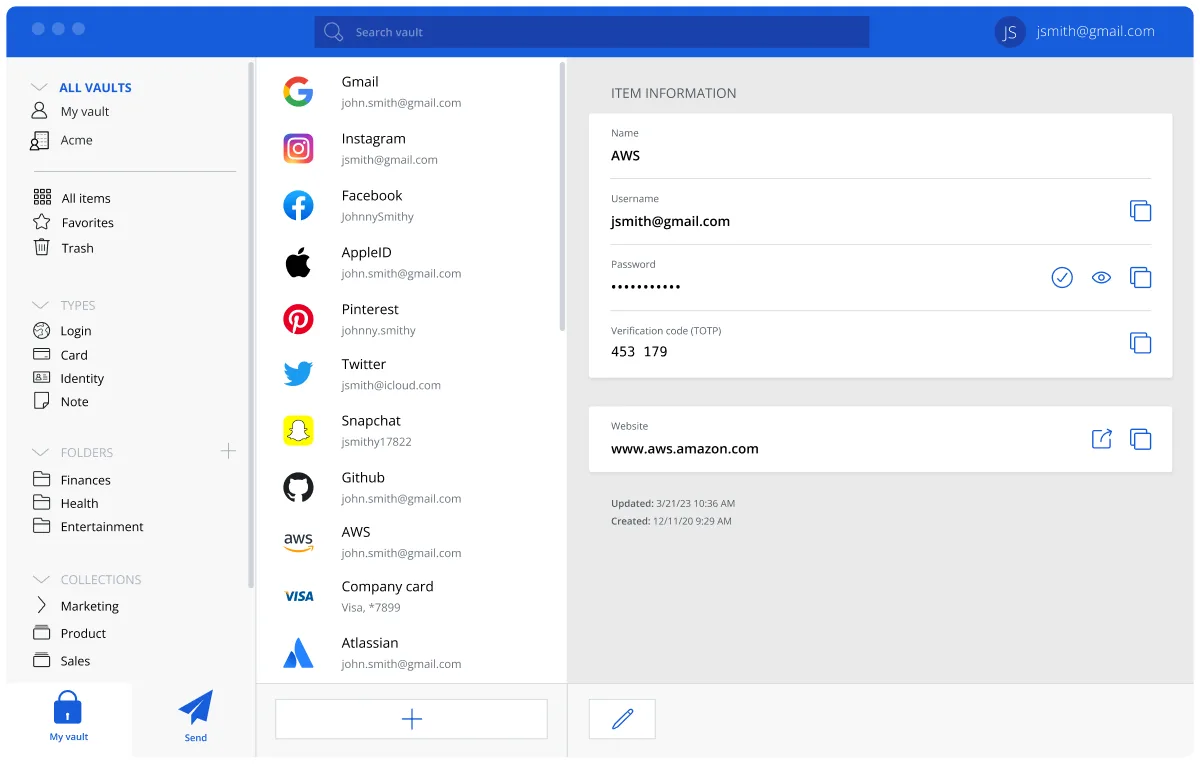
pacman -Uto install it, asking for your password once. - Open Bitwarden from your launcher and log in or Create account. The free plan has no limit on passwords or devices.
Without a helper, build it by hand. AUR builds need base-devel and git:
sudo pacman -S --needed base-devel gitgit clone https://aur.archlinux.org/bitwarden-bin.git && cd bitwarden-bin && makepkg -simakepkg -s installs missing dependencies from the official repositories, -i installs the result. Run it as your own user, never as root; makepkg refuses to run as root by design.
To build from source instead, replace bitwarden-bin with bitwarden. Expect a long build, several gigabytes of temporary files and a Node.js dependency. You get exactly the same application, so this only makes sense if you want to compile it yourself.
Read the PKGBUILD before you build
The AUR is a collection of build recipes submitted by users. Nobody at Arch reviews them, and a malicious update to a popular package would run with your privileges during makepkg. For a password manager the check is worth thirty seconds:
source=should point athttps://github.com/bitwarden/clients/releases/download/..., nothing else.sha256sums=should list a real hash, notSKIP.- The
package()function should only copy files into$pkgdir, not fetch anything or touch your home directory.
yay and paru both show the PKGBUILD and a diff against the last version you built, so this becomes a glance on each update. The Bitwarden GitHub page explains how the upstream releases are signed and what to compare against.
Method 2: Flatpak
Install Flatpak from the official repositories, add Flathub, then log out and back in so Flatpak applications appear in your launcher.
sudo pacman -S flatpak && flatpak remote-add --if-not-exists flathub https://flathub.org/repo/flathub.flatpakrepoflatpak install flathub com.bitwarden.desktopAccept the shared runtime it pulls in. Launch from the menu or with flatpak run com.bitwarden.desktop. The Flatpak is built by the Flathub maintainers from the official release and is the same on Arch as on Fedora and Ubuntu.
Method 3: AppImage
Download Bitwarden-<version>-x86_64.AppImage from the current release on GitHub (the install panel on this page links to it), install fuse2, then run it:
sudo pacman -S fuse2 && chmod +x Bitwarden-*.AppImage && ./Bitwarden-*.AppImageMove the file to ~/Applications or ~/.local/bin. It updates itself but adds no menu entry. Only take the file from GitHub or bitwarden.com; the checks in how to download safely apply here too.
First run, Wayland tray and the browser extension
- Pick a master password of four or more random words. Bitwarden never sees it; it derives the key that encrypts your vault locally.
- Settings, Security, turn on Unlock with PIN, set Vault timeout to 15 minutes and the action to Lock.
- Install the extension from Firefox Add-ons or the Chrome Web Store, log in with the same account, and set a PIN there as well under Settings, Account security.
Tray icon: Bitwarden can minimise to the tray (Settings, Options, Enable tray icon), but it needs a bar that implements the StatusNotifierItem protocol. KDE Plasma has one. On GNOME install gnome-shell-extension-appindicator. On Hyprland, Sway or river you need a tray-capable bar such as Waybar with the tray module enabled; without one the icon has nowhere to go and the window simply hides. Bitwarden runs under XWayland by default; to run it natively on Wayland, set ELECTRON_OZONE_PLATFORM_HINT=auto in your environment or add --ozone-platform=wayland to the launcher.
Browser integration (unlocking the extension through the desktop app) works with the AUR packages because neither side is sandboxed; enable Allow browser integration in the desktop app. With the Flatpak it may fail; the PIN covers the same convenience. The browser extension guide covers autofill, passkeys and shortcuts.
CLI and community tools
The official command-line client is also in the AUR as bitwarden-cli, and available upstream as npm install -g @bitwarden/cli; the CLI guide covers logging in, bw get and scripting. Around it the Arch community maintains bitwarden-rofi, a rofi menu that searches your vault through the official CLI, and rbw, an unofficial Rust client with a background agent that suits keyboard-driven setups. These are third-party projects: they are useful, but they are not audited by Bitwarden, and the desktop app plus extension remain the supported path.
Update and uninstall
Update by running your normal full upgrade; both helpers include AUR packages and rebuild bitwarden-bin when the maintainer bumps the version:
yay -SyuIf you built by hand, cd bitwarden-bin && git pull && makepkg -si. Flatpak users run flatpak update. The AppImage updates itself.
To remove the AUR package along with its dependencies that nothing else needs and its configuration:
sudo pacman -Rns bitwarden-binFor the Flatpak, flatpak uninstall --delete-data com.bitwarden.desktop; for the AppImage, delete the file. Local data lives in ~/.config/Bitwarden (AUR and AppImage) or ~/.var/app/com.bitwarden.desktop (Flatpak). It is an encrypted cache, so deleting it loses nothing; your vault is synced and comes back when you log in.
Troubleshooting
- yay: command not found. Plain Arch has no AUR helper. Build one first:
sudo pacman -S --needed base-devel git, thengit clone https://aur.archlinux.org/yay-bin.git && cd yay-bin && makepkg -si. On Manjaro,sudo pacman -S yayis enough. - “signature from … is unknown trust” or “invalid or corrupted package (PGP signature)”. Your keyring is stale. Run
sudo pacman -Sy archlinux-keyring(manjaro-keyringon Manjaro), thensudo pacman -Syuand retry. - “The SUID sandbox helper binary was found, but is not configured correctly” or “Running as root without —no-sandbox is not supported”. You launched Bitwarden as root or with
sudo. Run it as your normal user; a password manager should never run as root. - makepkg: “Running makepkg as root is not allowed”. Same cause. Clone and build as your user; makepkg asks for
sudoonly when it installs. - AppImage: “dlopen(): error loading libfuse.so.2”. Install
fuse2, then run the file again. - No tray icon on Hyprland or Sway. Add the
traymodule to Waybar, or turn off Enable tray icon so closing the window quits the app instead of hiding it.
Frequently asked questions
Is bitwarden-bin or bitwarden the better AUR package?
bitwarden-bin for almost everyone. It repackages the official prebuilt .deb from the GitHub release and installs in under a minute. The bitwarden package compiles the Electron client from source, which needs several gigabytes of disk, Node.js and a long build, and produces the same application.
Is it safe to install a password manager from the AUR?
Reasonably, if you read the PKGBUILD. AUR packages are user-submitted and not reviewed by Arch. For bitwarden-bin, confirm the source URL points at github.com/bitwarden/clients and that a sha256sum is listed; your AUR helper shows the file and any diff before building. The Flatpak avoids the question entirely.
Does Bitwarden work on Manjaro, EndeavourOS and CachyOS?
Yes. All three are Arch-based and use the same AUR. Manjaro ships yay in its repositories (sudo pacman -S yay), and EndeavourOS and CachyOS install yay or paru by default, so yay -S bitwarden-bin works without first building a helper. Flatpak and the AppImage also work unchanged.
How do I update Bitwarden on Arch Linux?
Run your normal full upgrade: yay -Syu or paru -Syu includes AUR packages and rebuilds bitwarden-bin when a new release appears. If you built it by hand, git pull in the clone and run makepkg -si again. The Flatpak updates with flatpak update; the AppImage has a built-in updater.
Why does the Bitwarden AppImage fail on Arch?
Usually because fuse2 is not installed; AppImages mount themselves with FUSE version 2, and Arch only ships fuse3 by default. Run sudo pacman -S fuse2, make the file executable with chmod +x and start it again. If you are root, stop: Electron refuses to run as root without a sandbox flag.