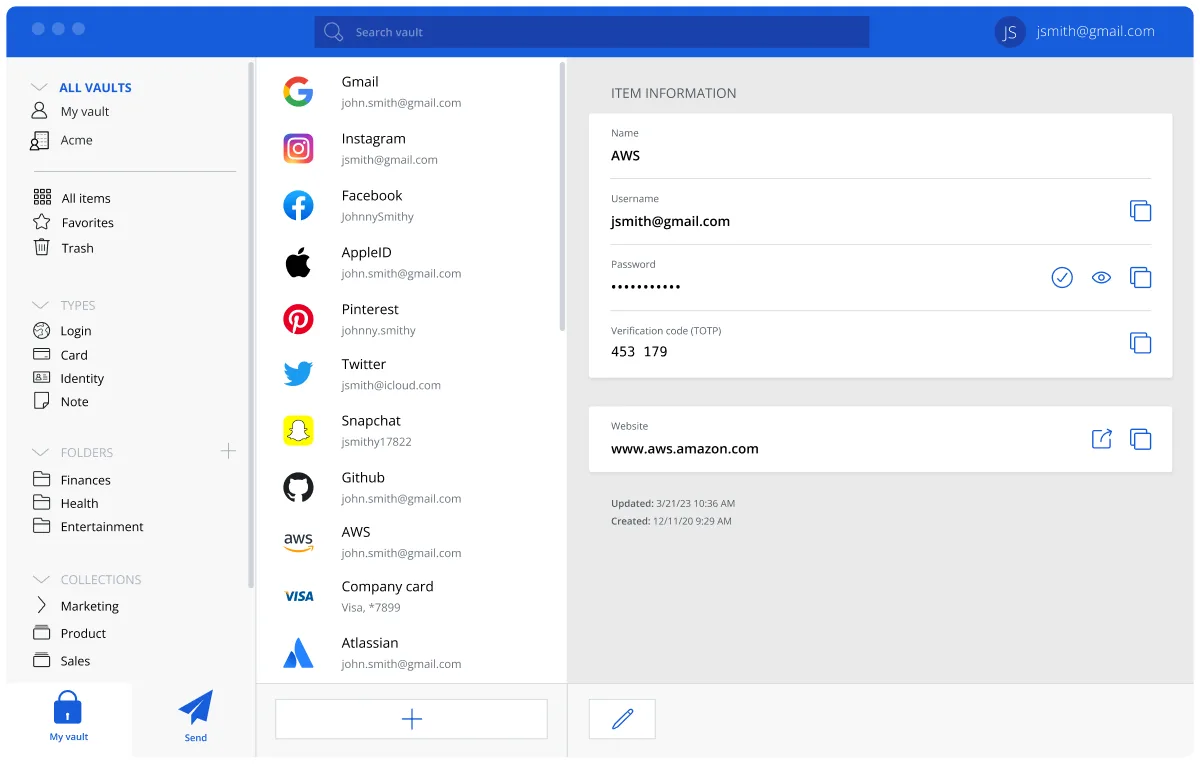
Which install method to use
| Method | Auto-updates | Sandboxed | Size on disk | Works on Mint / Pop!_OS |
|---|---|---|---|---|
Snap sudo snap install bitwarden | Yes, several times a day | Yes (strict) | About 300 MB with the shared core | Mint: snapd disabled by default. Pop!_OS: not installed |
.deb from GitHub | No, the app notifies you | No | About 300 MB | Yes, on every Debian-based distro |
Flatpak com.bitwarden.desktop | On flatpak update or via the software centre | Yes | About 300 MB plus shared runtime | Yes, Flatpak is preinstalled on both |
| AppImage | Yes, built in | No | About 100 MB, one file | Yes, needs libfuse2 |
All four are the same open-source desktop app, published from the bitwarden/clients repository. The honest trade-off is about who controls delivery. Snap is the format Canonical built into Ubuntu; the Snap Store backend is proprietary and you cannot point snapd at another store, which is why Linux Mint disables snapd by default and Pop!_OS leaves it out. Flatpak is vendor-neutral, Flathub is the single shared catalogue, and Debian, Mint and Pop!_OS all support it out of the box or with one package. The .deb is the plain native package with no sandbox and no automatic updates. The AppImage is a self-contained file for when you cannot or will not install anything.
Method 1: Snap (Ubuntu default)
- Press Ctrl-Alt-T to open a terminal.
- Paste the command below, press Enter and type your password.
sudo snap install bitwarden- Wait for “bitwarden … installed”. Press the Super key, type Bitwarden and open it.
- Log in or Create account. The free plan has no limit on passwords or devices.
The snap uses strict confinement, so you do not need --classic. It downloads about 300 MB including the shared Electron base and refreshes itself automatically. Snap updates cannot be turned off, only deferred with sudo snap refresh --hold=72h bitwarden.
Method 2: the .deb from GitHub
This is the right choice on Debian, Linux Mint and Pop!_OS, and on Ubuntu if you prefer native packages.
- Open the current release on GitHub (the install panel on this page links to the exact file) and download
Bitwarden-<version>-amd64.deb, about 100 MB. From a terminal,wgetthe link the panel gives you; do not guess the URL, because the version changes with every release. - Install it with apt rather than dpkg so dependencies are resolved:
sudo apt install ./Bitwarden-*-amd64.deb- The leading
./matters; it tells apt this is a local file, not a package name. Apt pulls in anything missing, such aslibsecretorlibnotify. - Delete the .deb when it finishes and launch Bitwarden from the applications menu.
There is no apt repository, so sudo apt upgrade will not update Bitwarden. The app tells you when a new release exists; download and install the new .deb the same way. Only take the file from GitHub or bitwarden.com; the checks in how to download safely apply on Linux too.
Method 3: Flatpak from Flathub
Pop!_OS and Linux Mint ship Flatpak with Flathub enabled, so you can skip to the last command. On Ubuntu and Debian, install Flatpak and add Flathub first.
sudo apt install flatpak && flatpak remote-add --if-not-exists flathub https://flathub.org/repo/flathub.flatpakrepoLog out and back in once so Flatpak applications appear in the menu, then install Bitwarden:
flatpak install flathub com.bitwarden.desktopAccept the runtime it pulls in (a shared Freedesktop platform, used by other Flatpaks too). Launch it from the menu or with flatpak run com.bitwarden.desktop. On Ubuntu you can also add gnome-software-plugin-flatpak so the App Center handles Flatpak updates; on Mint and Pop!_OS the software centre already does.
Method 4: AppImage (last resort)
Use this when you have no root access or want nothing installed system-wide. Download Bitwarden-<version>-x86_64.AppImage from the release page, then:
chmod +x Bitwarden-*.AppImage && ./Bitwarden-*.AppImageUbuntu 22.04 and later do not ship libfuse2, which AppImages need. Install it first with sudo apt install libfuse2 (the package is libfuse2t64 on Ubuntu 24.04). Move the file to ~/Applications or ~/.local/bin so it is not deleted with your downloads. The AppImage has a built-in updater but no menu entry unless you create one.
First run and the Firefox extension
- Pick a master password of four or more random words. Bitwarden never sees it; it derives the key that encrypts your vault locally.
- Open Settings, Security and turn on Unlock with PIN. Set Vault timeout to 15 minutes and the action to Lock.
- Install the extension from Firefox Add-ons or the Chrome Web Store and log in with the same account.
- In the extension, Settings, Account security, set Unlock with PIN here as well.
The desktop app has an Allow browser integration option, and on Windows and macOS the extension uses it to unlock with biometrics. On Ubuntu, Firefox is itself a snap, and native messaging between a sandboxed browser and a sandboxed Bitwarden (snap or Flatpak) often fails or silently does nothing. Treat browser integration as a bonus, not a requirement: the extension works on its own with a PIN, and the desktop app is where you edit and organise. Turn off Firefox’s own saving under Settings, Privacy & Security, Ask to save passwords. The browser extension guide covers autofill, passkeys and shortcuts, and import from Chrome covers moving passwords Firefox or Chrome already holds.
Tray icon on Wayland and X11
Bitwarden can minimise to a tray icon (Settings, Options, Enable tray icon). Ubuntu’s GNOME session ships the AppIndicator extension, so the icon shows on both Wayland and X11. On stock Debian GNOME there is no tray at all; install gnome-shell-extension-appindicator and enable it in the Extensions app, or leave the tray option off. KDE Plasma, Cinnamon (Mint) and COSMIC (Pop!_OS) have working trays. If the icon is missing under Wayland only, log into an X11 session once to confirm it is a shell issue rather than a Bitwarden one.
Update and uninstall
| Method | Update | Uninstall |
|---|---|---|
| Snap | Automatic, or sudo snap refresh bitwarden | sudo snap remove bitwarden |
| .deb | Download the new .deb, sudo apt install ./Bitwarden-*-amd64.deb | sudo apt remove bitwarden |
| Flatpak | flatpak update | flatpak uninstall --delete-data com.bitwarden.desktop |
| AppImage | Built-in updater, or replace the file | Delete the file |
Local data lives in ~/snap/bitwarden for the snap, ~/.var/app/com.bitwarden.desktop for the Flatpak and ~/.config/Bitwarden for the .deb and AppImage. It is an encrypted cache, so deleting it loses nothing; log in again and the vault syncs back. Uninstalling the app does not delete your account or your passwords. The Fedora and Arch guides cover the same app on RPM- and pacman-based systems.
Troubleshooting
- AppImage does nothing or reports “dlopen(): error loading libfuse.so.2”. Install
libfuse2(libfuse2t64on Ubuntu 24.04), then run the file again. - apt: “dependency problems, leaving unconfigured”. You installed the .deb with
dpkg -i. Runsudo apt --fix-broken install, which pulls the missing dependencies and finishes the install. - snap: “error: cannot install … classic confinement”. Not applicable to Bitwarden; it is strictly confined. If you see that message you typed a different package name.
- snap: “command not found”. Mint disables snapd. Either use the .deb or Flatpak, or remove the pin with
sudo rm /etc/apt/preferences.d/nosnap.prefandsudo apt install snapd. - Extension says it cannot connect to the desktop app. Expected between a Firefox snap and a Bitwarden snap or Flatpak. Use Unlock with PIN in the extension instead, or install Firefox from Mozilla’s apt repository if you want the integration.
- Flatpak app is missing from the menu. Log out and back in so the session picks up the Flatpak export path.
Frequently asked questions
Is the Bitwarden snap official?
Yes. The snap in the Snap Store is published by Bitwarden Inc. under the verified bitwarden account and built from the same open-source clients repository as the .deb and AppImage. It uses strict confinement, so it does not need the classic flag, and it updates automatically.
Should I use Snap or Flatpak for a password manager on Ubuntu?
On stock Ubuntu, Snap is preinstalled and works with no setup, so it is the path of least resistance. Flatpak gives you a vendor-neutral store, updates you control, and works the same on Mint, Pop!_OS and Debian. Both deliver the same app; pick the one your desktop already uses.
Does Bitwarden work on Linux Mint without Snap?
Yes. Mint disables snapd by default, so install the .deb from the official GitHub release with sudo apt install ./Bitwarden-*-amd64.deb, or use Flatpak, which Mint ships preconfigured with Flathub in its Software Manager. Both give you the full desktop app.
Why does the Bitwarden AppImage not open on Ubuntu?
Almost always because libfuse2 is missing; Ubuntu 22.04 and later stopped shipping it. Run sudo apt install libfuse2 (libfuse2t64 on 24.04), make the file executable with chmod +x, and launch it again. If it still fails, the Flatpak is the simpler alternative.
Can I use fingerprint unlock with Bitwarden on Ubuntu?
Not reliably. Biometric unlock on the Linux desktop is limited, and browser integration between a sandboxed Firefox snap and a sandboxed Bitwarden often fails. Set a PIN in the extension under Settings, Account security, Unlock with PIN, so you type the master password only after a restart.