Export formats: 1PUX, CSV and 1PIF
1Password offers more than one export format, and the one you choose decides how much survives the move.
| Format | Produced by | Bitwarden importer entry | What it keeps |
|---|---|---|---|
1PUX (.1pux) | 1Password 8 desktop, Windows, macOS, Linux | 1Password (1pux) | All item types, custom fields, notes, tags, vault names, favourites |
| CSV | 1Password 8 desktop | 1Password (csv) | Logins only: title, URL, username, password, notes, one-time secret |
1PIF (.1pif) | 1Password 7 (Mac and Windows) | 1Password (1pif) | All item types and fields from that version |
Use 1PUX whenever it is available. It is a zip archive containing export.data (JSON) and any attached files; Bitwarden reads the JSON and ignores the attachments. The mobile apps cannot export, so do this on a computer.
Step 1: export from 1Password 8
- Open the 1Password desktop app and unlock it.
- Choose File, Export, then the account you want to export. If you belong to a personal account and a family or team account, they export separately, and the export contains only vaults you can see in that account.
- Enter the account password to confirm.
- Under File format choose 1PUX, then Export Data, and save to the Desktop. The file is named after the account, for example
1PasswordExport-<date>.1pux. - Repeat for any other account.
On 1Password 7 the menu is File, Export, All Items, and the format is 1Password Interchange Format (.1pif); export per vault. If you only have the browser-based 1Password (no desktop app), install the desktop app for the export, since the web app has no export.
The export is unencrypted. Every password, note and card number is readable inside the zip, so import it immediately and delete it afterwards.
Step 2: import into Bitwarden
- Export from 1Password 8. In the 1Password desktop app choose File, Export, pick the account, enter the account password, select 1PUX format and save the file.
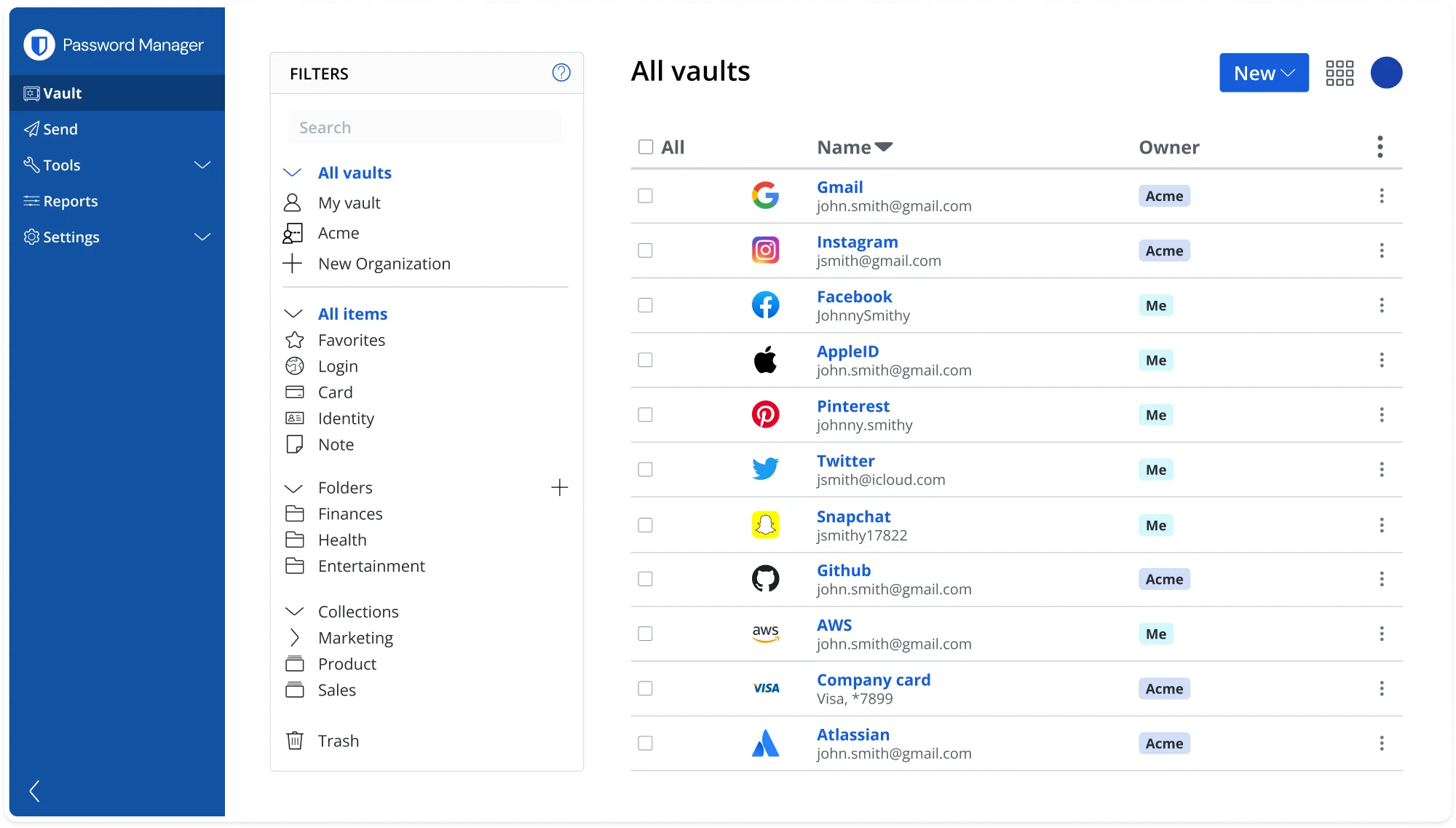
- Open the Bitwarden web vault. Sign in at
vault.bitwarden.com, orvault.bitwarden.eufor EU accounts, and choose Tools, then Import data. Create a free account first if you do not have one. - Choose 1Password (1pux) and the file. Select 1Password (1pux) as the format, pick the
.1puxfile without unzipping it, and click Import data. Bitwarden reports how many items and folders it created. - Check items and folders. Search the vault for a few logins, a card and a secure note, and check that each 1Password vault appears as a folder in the left sidebar.
- Delete the export and swap extensions. Delete the
.1puxfile, empty the Recycle Bin or Trash, remove the 1Password extension from each browser and install Bitwarden’s (next section).
If the import belongs to a family or team, run it into the organisation instead: on the Import data page set the destination to the organisation and pick a collection, and 1Password vaults become collections rather than personal folders. For a scripted import, bw import 1password1pux export.1pux does the same job from the CLI.
What maps and what does not
| 1Password data | Bitwarden result |
|---|---|
| Logins (username, password, URLs, notes) | Login items with all URLs as URIs |
| One-time passwords (TOTP) on a login | Copied into the TOTP field; codes display on Premium |
| Secure notes | Secure Note items |
| Credit cards | Card items |
| Identities | Identity items |
| Passwords (standalone), API credentials, licences, Wi-Fi, servers, databases | Login or Secure Note items with details in custom fields |
| Vaults | Folders (or collections when imported into an organisation) |
| Tags | Folders where possible; one folder per item |
| Favourites | Favourites |
| Custom fields and sections | Custom fields (text, hidden, boolean) |
| Documents and file attachments | Not imported; re-upload on Premium (1 GB) |
| SSH keys | Not imported; create Bitwarden SSH key items by hand |
| Passkeys | Not imported; re-register on each site |
| Watchtower data, item history, archive state | Not imported |
Most people find that logins, notes, cards and identities arrive complete and the remaining work is the last four rows.
SSH keys, passkeys and attachments: re-add by hand
SSH keys. Bitwarden has an SSH key item type and an SSH agent in the desktop app. For each key in 1Password, copy the private key, then in Bitwarden choose New item, SSH key and paste it; Bitwarden derives the public key and fingerprint. In the desktop app turn on Settings, Enable SSH agent and point your client at it as the help page describes.
Passkeys. No password manager can export passkeys. Sign in to each site that uses one, open its security settings and register a new passkey while the Bitwarden extension is installed and unlocked; Bitwarden offers to store it. Then remove the 1Password passkey from the site. The free plan stores unlimited passkeys.
Attachments and Documents. Open each Document or item with a paperclip in 1Password, download the file, then in Bitwarden open the matching item, choose Attachments and upload. Attachments need Premium and count against 1 GB of encrypted storage. Delete the local copies afterwards.
Swap the browser extension
Running both extensions at once gives two prompts on every form, so disable one of them for autofill.
- Install Bitwarden from the Chrome Web Store, Edge Add-ons, Firefox Add-ons, or the Safari extension inside the macOS app, and log in.
- In the Bitwarden extension open Settings, Autofill and turn on Show autofill suggestions on form fields so it behaves like 1Password’s inline menu.
- In the 1Password extension, turn off Show autofill menu on page or remove the extension.
- On iPhone and Android, set Bitwarden as the autofill provider (Settings, General, AutoFill & Passwords on iOS; Settings, Passwords and accounts on Android) and untick 1Password.
The browser extension guide covers biometric unlock and keyboard shortcuts.
Cancel and remove 1Password
Do this in order, because a 1Password account that has been frozen for non-payment can no longer export.
- Confirm the Bitwarden vault is complete, including SSH keys, attachments and passkeys.
- Sign in at
my.1password.com(or your family, team or business URL), open Billing, and cancel the subscription. Subscriptions bought through the App Store or Google Play are cancelled there. - Optionally wait until the paid period ends, in case something is missing.
- Under your profile choose Delete Account. 1Password emails a confirmation. Deletion removes all vaults for that account.
- Uninstall the 1Password apps and extensions.
Cost: Bitwarden Premium as the cheaper equivalent
1Password has no free tier beyond a 14-day trial; Individual is roughly US$36 per year and Families roughly US$60 per year (check the vendor’s pricing page). Bitwarden’s free plan already gives unlimited items and devices, sync, the generator, passkeys and two-step login with an authenticator app. Premium at about US$10 per year adds the built-in TOTP authenticator, 1 GB of attachments, emergency access, vault health reports and hardware-key two-step login, which covers everything a 1Password Individual subscriber is used to. Families is about US$40 per year for six people. The detailed feature comparison is in Bitwarden vs 1Password, and the security model is explained in is Bitwarden safe.
Troubleshooting
- The importer says the file is not valid. You unzipped the
.1puxand pickedexport.data, or renamed the extension. Select the original.1puxarchive; Bitwarden unpacks it itself. - The import times out or the page hangs on a very large vault. Export one vault at a time from 1Password (deselect the others in the export dialog, or move items into temporary vaults) and import each file separately. Vaults with thousands of items or many attachments are the usual cause.
- Items landed in the personal vault instead of the organisation. Delete them, then repeat the import with the destination set to the organisation on the Import data page.
- Duplicate items after a second attempt. Bitwarden does not de-duplicate on import. Sort by name in the web vault, select the copies and delete them, or delete everything and import once more.
- TOTP codes show as text rather than rolling numbers. Codes need Premium to display; the secret is stored either way. Alternatively use the free Bitwarden Authenticator app for those secrets.
The LastPass and Chrome and Edge guides follow the same import path if you have passwords in more than one place.
Frequently asked questions
Should I export from 1Password as 1PUX or CSV?
Use 1PUX. It keeps every item type, custom fields, notes, tags and vault names, and Bitwarden imports it directly. The CSV export only contains logins with a single URL and drops secure notes, cards, identities and extra fields. Use CSV only if 1PUX is unavailable, for example on very old versions.
Can I import a 1Password 7 export into Bitwarden?
Yes. 1Password 7 exports a .1pif file (File, Export, All Items, 1Password Interchange Format). Choose 1Password (1pif) in the Bitwarden importer. The mapping is the same as 1PUX, though 1pif may be a single file per vault, so repeat the export for each vault you want.
Do 1Password vaults and tags become folders in Bitwarden?
Each 1Password vault becomes a Bitwarden folder named after the vault, and 1Password tags are imported as folders where possible. An item can only sit in one Bitwarden folder, so an item with several tags keeps one and the rest are dropped. Shared vaults for a family or team belong in Bitwarden collections, which you set up after the import.
Will my 1Password passkeys and SSH keys import into Bitwarden?
No. Passkeys cannot be exported by any password manager; register a new one on each site with the Bitwarden extension installed. SSH keys are exported inside the 1PUX file but not imported; copy each private key into a new Bitwarden SSH key item, then point your SSH client at Bitwarden's agent.
Is Bitwarden Premium cheaper than 1Password?
Yes. Bitwarden Premium is about US$10 per year and Families about US$40 per year for six people. 1Password Individual is roughly US$36 per year and Families roughly US$60 per year, with no free tier beyond a 14-day trial; check the vendor's pricing page for current figures. Bitwarden's free plan already covers unlimited items and devices.
How do I close my 1Password account after moving to Bitwarden?
Export first, because a frozen account cannot export. Then sign in at my.1password.com (or your family or team URL), open Billing and cancel the subscription, and finally use Delete Account under your profile. Confirm a few logins work from Bitwarden before you delete anything.